
IN THIS SECTION
Overview
You can view Budgets in Joiin and compare them to Actual values and see Variance and Variance %. Budgets are automatically imported from Xero or QuickBooks. You can also create your own Budgets directly in Joiin using manual budget creation.
Difference between Forecasts and Budgets
A budget is made up of figures you enter manually - pulled in from Xero or QuickBooks, or typed into Joiin yourself. Figures are entered against a flat list of accounts, across the whole chart of accounts and optionally against your Non-Financial Data items. You can then report on the Budget data, alongside actual data, using the Budget toggle on any of the Joiin financial reports.
A forecast generates its figures automatically from your recent actuals using rules, patterns and/or AI - with figures entered manually on top if necessary. A forecast spans all three financial statements at once and you can view these three all in one place within the forecast itself. You can also report on the Forecast data, alongside actual data, using the Budget toggle on any of the Joiin financial reports, in the same way as Budgets. See the Forecasting article for more information on forecasting.
Joiin Budgets
Joiin Budgets are budgets that have been manually created or imported into Joiin. Joiin budgets can be used for creating consolidated budgets. See Creating a Budget section for more information on this.
External Budgets
External Budgets are budgets that have been automatically imported from your Xero or QuickBooks companies. These budgets will be refreshed whenever your main company data is refreshed.
Budgets are imported in 12-monthly chunks. Each 12 month period will be aligned with the Start Date you have set on your Company config. By default the Start Date is January but you can change this if your financial year starts in a different month. See our Managing Companies article for more information on how to change.
A QuickBooks Budget which is broken down by Class will be imported in Joiin as a separate Budget for each Class.
NOTE: A maximum of 100 budgets will be imported from Xero or QuickBooks.
More information on Xero Budgets.
More information on QuickBooks Budgets.
Viewing Budgets
You can view a list of budgets, either imported from Xero/QuickBooks or created by you, by selecting Budgets from the left menu.
The Budgets page shows all budgets from your source entities (Xero or QuickBooks) along with Joiin budgets you have created. You can search, filter, sort and perform actions on budgets from this page.
Filtering
The top section of the page contains a number of filters which allow you to narrow down the results.
| Filter | Description |
|---|---|
| Companies | Select the companies you wish to display budgets for. Selecting a company will filter the results to only Budgets linked to the selected Comapnies. |
| Search by text | Enter text to search for a budget with a name containing that text |
| Source | The source of the budget:
|
| Status | Enable or Disabled. |
| Currency | The currency of the budget. |
| Start year | The year the budget starts in. |
| Category | The Category a budget is for. |
Clearing Filters
Click on the Clear Filters icon at the top to reset all filters, columns and sort order to their default settings.
Column Sorting and Ordering
Sorting
You can click on the column heading to sort the results by that criteria. The initial click will sort ascending and an up arrow will be displayed in the column heading, e.g.

Click again to sort descending - the direction of the arrow will change:

Selecting Columns
You can choose which columns to display when viewing results. To do this
- Click on the cog icon at the top right
- Check/Uncheck the columns you wish to see/hide
- Click on Apply button to apply the changes
Changing Column Order
You can change the order in which columns are displayed when viewing results. To do this
- Click on the cog icon at the top right
- Click and hold the three-bar icon at the left of the column name and drag/drop it into the place required.
- Click on Apply button to apply the changes
Resetting to Default
You can reset the columns and sorting to the default values. To do this
- Click on the cog icon at the top right
- Click on Reset button
NOTE: Any changes you make to the filter, columns and sort order will be saved in your browser for the next time you visit the page.
Enabling/Disabling Budgets
You can control which budgets are used when running reports by enabling or disabling them. This can be helpful if you have numerous budgets covering different scenarios.
To enable or disable a budget simply click on the toggle to the left of the budget.

Bulk Enable/Disable
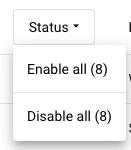
You can enable or disable multiple budgets in one go by clicking on the Status column heading and selecting Enable all or Disable all. This will act on only the budgets that are being displayed based on the selected filters - so this is helpful when used in tandem with the filtering capabilities
FX Treatment
You can modify the way FX is treated, using the Edit FX Treatment option, from the three-dot menu.
By default, budget FX values are converted using the same FX rates and conversion method as actuals (based on your P&L and Balance Sheet conversion type settings). This is the Variable FX treatment. Alternatively, FX treatment can be set to Fixed, to fix the budget FX rates to a specific date.
Other Budget Actions
You can Download a budget by selecting Download from the three-dot menu to the right.
You can edit a budget by clicking on the budget name or selecting Edit from the three-dot menu.
You can remove a budget by selecting Remove from the three-dot menu.
Reporting on Budget/Forecast vs Actual
You can report on Budget/Forecast vs Actual when running a report by switching the Budget & Forecast Column option on - see this section for more information on running reports. The Budget & Forecast option is available on all financial reports apart from the Trial Balance report.
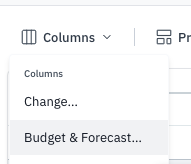
Click on the Columns button on the report and select Budget & Forecast to bring up further display options.
Options
| Option | Description |
|---|---|
| Data Source | Toggle between Budget or Forecast - this controls whether Budgets or Forecasts are used as the data source. |
| Column Header | Toggle between Budget or Forecast - this controls whether the column headings read "Budget" or "Forecast". This is helpful if you want to report on Budget data but you want it presented with the Forecast column headings. |
| No budget | No budget information will be displayed |
| Budget vs Actual | Budget information will be displayed - you can choose which items to display:
|
| Budget only | Only the budget values will be displayed. This is a convenient way to see a budget in a particular report format such as P&L. |
| Actual & Budget | Shows Actual figures for past months and Budget figures for current/future months. Useful for rolling forecasts. You can choose which month you wish to use as the First budget month - this defaults to the current month but you can change it to another month, if, for example, you are behind in closing your monthly books and still want to see the budgeted amount for an earlier month. |
| Budgets/Forecasts to use | Choose which budgets/forecasts you wish to include in the results. Options are: All enabled budgets/forecasts for the selected companies Available when Reporting by Company. If Budgets is selected, this includes all enabled budgets linked to the companies selected in the report, plus any enabled "All Companies" budgets. If Forecasts is selected, this includes all enabled forecasts linked to the companies selected in the report. Forecasts linked to groups are not included, even if the group contains a selected company. To report on a group forecast, use Report by Group. All enabled budgets for companies in the selected groups / All enabled forecasts for the selected groups Available when Reporting by Group. If Budgets is selected, this includes all enabled budgets linked to the companies in the groups selected in the report, plus any enabled "All Companies" budgets. If Forecasts is selected, this includes only the enabled forecasts linked to the groups selected in the report. Forecasts linked to individual companies are not included. Select specific budgets/forecasts Select specific budgets or forecasts to report against. A popup appears where you can select the budget(s)/forecast(s) to include in your report output. Select the ones you want and click Apply. You can edit your selections by clicking on the Edit button or remove specific budgets by clicking on the x next to the name. |
NOTE: When an "All enabled forecasts" option is selected, the forecasts the report will use are listed below the option. Only forecasts whose dates overlap the report period are listed.
Click on Apply changes and the budget information will be displayed.
If you have chosen to show variance columns, those columns highlight the difference between the budget amount and the actual amount. The arrow icons show whether the variance is an increase (up arrow) or decrease (down arrow), and whether it’s favourable (green) or unfavourable (red).
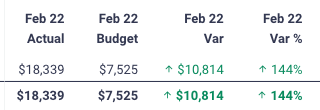
NOTE: You can control how the favourability is displayed by changing the Budget Favourability setting on Custom Layouts - for more information see this article.
Seeing the underlying budget values
Hovering over the value with your mouse will bring up more details of the individual budgets/months that the budget information came from.
NOTE In Compact View budget info is shown in the same column as the Actual.
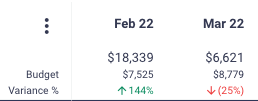
The budget information used is taken from all the budgets that were selected to report on and for the relevant period and companies that have been selected for this report run. If there is more than one budget or the report period spans multiple months then the individual budget amounts for each budget/month will be displayed when you hover over the amount - the individual amounts will be summed up to get the total budget amount displayed on screen.
Budget lines with no matching account
If a Joiin budget includes an account that isn't in the company's chart of accounts, the report still shows the budget figure on its own line, with actuals of zero - and a message will be displayed when you hover over the line:
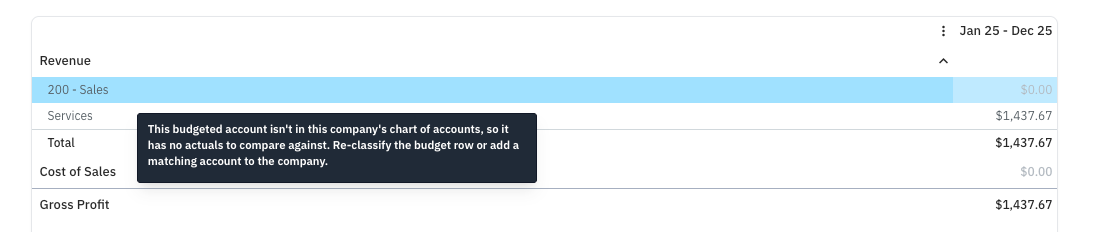
This usually happens when the budget row was set up with a different account or classification, or when the account has since been renamed or re-coded in Xero or QuickBooks. To fix it, edit the budget row to use the correct account, or add the matching account to the company.
Non-Financial Data
If your Joiin budgets include Non-Financial Data values (see Creating a Budget Manually), the Budget column shows them for Non-Financial Data items in the KPI report and for any formula in a Custom Layout that uses them, for example Revenue per Head. Variance and Variance % are shown in the same way as for accounts.
An item's budget values are added up across budgets within each month, then combined across months using the item's Aggregation method, the same as its actuals.
In Custom Layouts, the formula's own Budget Favourability setting controls the colours. In the KPI report, Stripe metrics show favourable variance in green and unfavourable in red: for example, higher MRR is favourable and higher churn is unfavourable. Other Non-Financial Data items show the variance without colour.
NOTE: Budget values for currency items are taken to be in the budget's currency, whatever currency the item's actual values are in (for example a Stripe metric in GBP can be budgeted in a USD budget). Actual and budget values are each converted to the reporting currency. Budget values use the budget's FX treatment, the same as the budget's account values.
By Category Budgets
When running a report By Category, only Budgets with a Category option will be included. Non-category budgets will not be included as it is not possible to work out the split across the categories in this case. When not reporting by category both Category and non-category budgets will be included. The total across all the categories will be summed up to get the total budget value.
It is therefore recommended that, if you have budget figures at the Category level, then enter them at that level and Joiin will sum them up for you when running an overall (not-by-category) report.
Year to Date
NOTE If you are reporting on Year-to-date figures across multiple companies with differing year ends, the budgets figures are calculated as follows.

For Company-specific budgets, the Fiscal Year start month of each company will be taken as the Start month for the YTD budget figure.

For non-Company-specific budgets, the Fiscal Year start month will be taken as the Fiscal Year start of the first company in the list of companies being reported on. This is because, for an overall budget, there is no way to know which portion of a budget is allocated to which company.