
IN THIS SECTION
Overview
Company Groups are a means of organising your companies to make it easier to report. With groups you can quickly select companies to report on, or report by group to see a breakdown, with the results of several companies grouped together. See the Running Reports article for more information.
You can view, add, remove and edit company groups through Groups tab on the Companies page - alternatively, you can access Groups by clicking on the Manage groups button on the company/groups filter on the reports pages.
NOTE: Company Groups can be used to run all reports and on Report Packs and Dashboards. It's a useful way ok keeping Report Packs and Dashboards up-to-date with your list of companies without having to make changes in multiple places.
Viewing Groups
Company Groups are shown on the Groups tab. A list of your groups is shown with a column showing how many companies are in each group and what type of companies are included (Xero, QuickBooks, Manual etc.). Click on the arrow next to those companies to view the companies within that group on the Companies tab.
The three-dot menu on the right of each group provides further actions to perform on the group - see below.
NOTE: Groups can also be managed via the Company filter when running reports. See the Running Reports article for more information.
Creating Groups
Click on the dropdown and click the Create a group button to add a new group. You will then be prompted to enter a name for your Group and select the companies you wish to include.
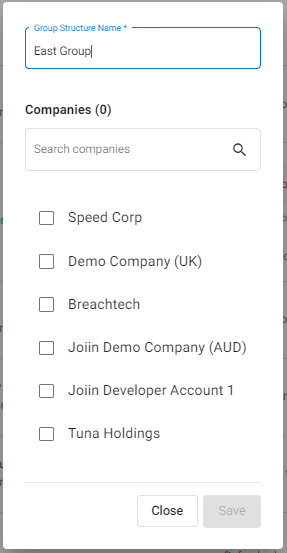
You can search for companies by entering the search criteria in the search box. Check the companies you wish to include and, once done, click Save.
Editing Groups
You can change the name of a group or change the companies that make it up. To do this, click on the three-dot menu next to the Group and select Edit. Change the name as desired and click Save. Or click on the Edit link next to the companies to change the selection of companies that make up this group.
Changing Company % Ownership
If you are consolidating across multiple companies, some of which are only partially owned you can set a percentage ownership of a company. This will cause all values for that company in all reports to be adjusted according to the percentage.
You can set the percentage ownership of each company in two different ways.
| Level | Where to set it | How it works |
|---|---|---|
| Company Level | Companies page | Company level ownership percentages are used when reporting by company. |
| Group Level | Company Groups page | Group level company ownership percentages are used when reporting by group. |
To change the ownership of a company within a group click on the three dot menu next to the Group and select Edit. Enter the percentages against each company and click Save.
Deleting Groups
You can delete a group. To do this, click on the three-dot menu next to the Group and select Delete.
NOTE: If you delete a group, any Report Packs that contain reports including that group will become invalid. You will need to fix any issues on these report packs before you can run them.
Adding Non-Financial Data
You can add Non-Financial Data to a Group by selecting Non-Financial Data from the action (three dot) menu next to the Group. Non-Financial Data allows you to capture, consolidate, and report on key business metrics alongside your financial data. For more information see the Non-Financial Data article. When non-financial data has been added to a group a red icon will appear against it in the Companies list.