
Forecasts can be created via the forecasts page. Once added, the forecasts can be applied using the budgets toggle on reports.
For more info on creating a forecast, please see this guide
Running your Forecast
Now you are ready to run your report:
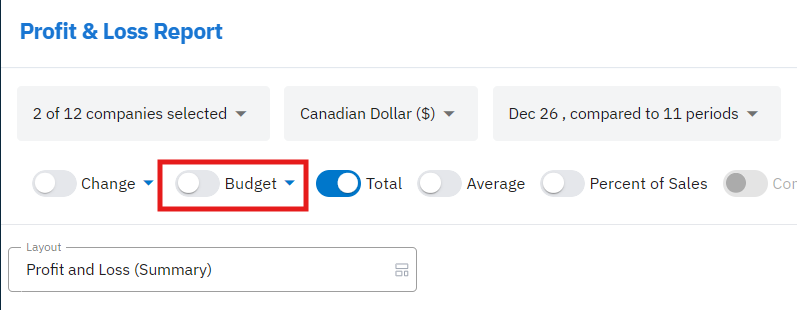
1. Start by selecting the Budgets toggle shown in the top left corner of your report
2. If you have used the Forecast feature, select Forecast in the Data Source setting
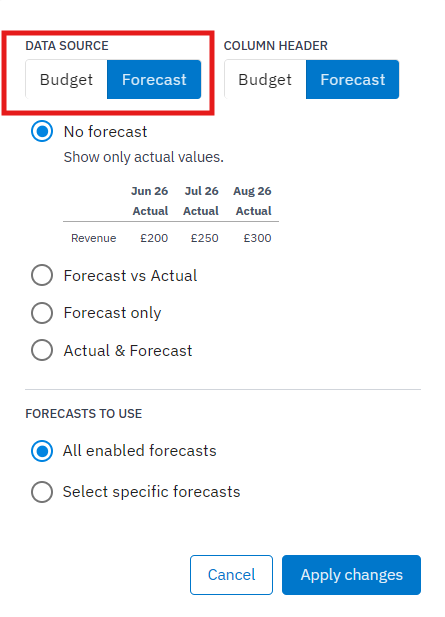
3. Select either Forecast Only or Actual & Forecast using the tick boxes provided
4. If you would like to use a specific forecast, use the Select Specific Forecasts button at the bottom of the pop-up window
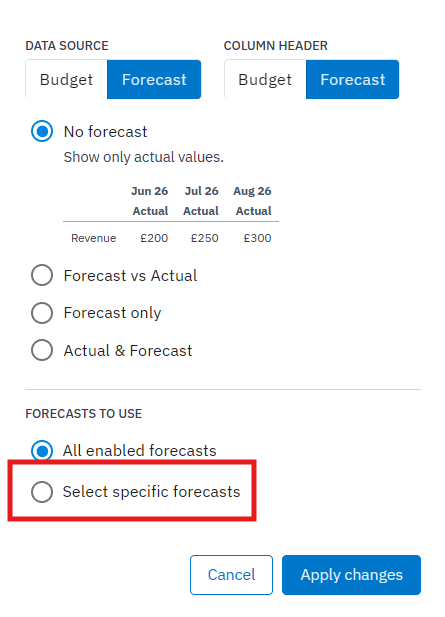
NOTE: If All enabled forecasts is selected, Joiin will only include forecasts created for the companies or company groups included in the report.
5. Click Apply Changes
Once the forecast is applied to the report with the above settings, it will appear as shown below.
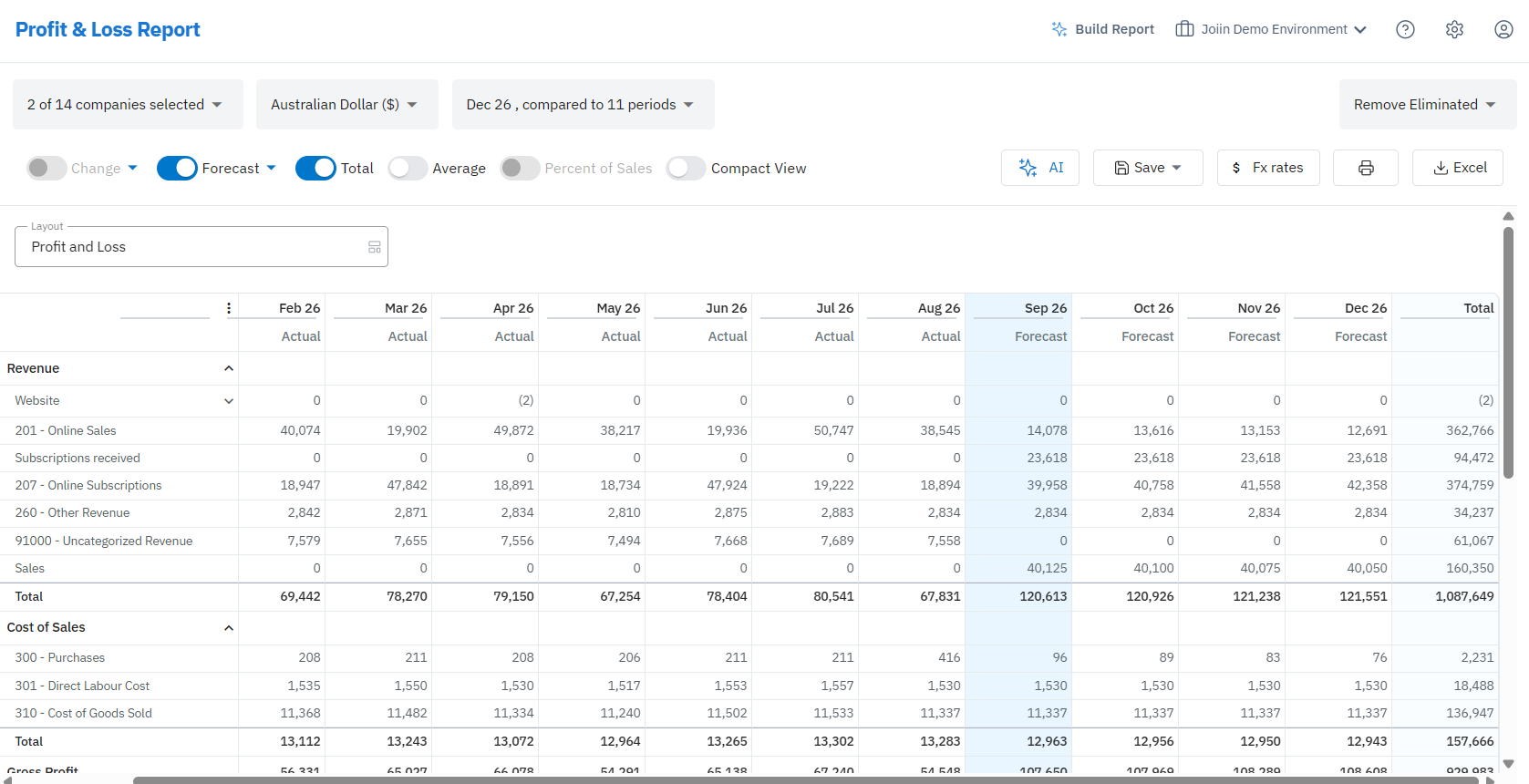
NOTE: If the report is ran with the By Company filter, group forecasts will not be applied. In this case, users can use the Report by Group function to see the forecasts applied to each group.
For more info on each of the options shown for the Budget toggle, please see this guide